X / Twitter Question
Where to Find Scheduled Posts on X
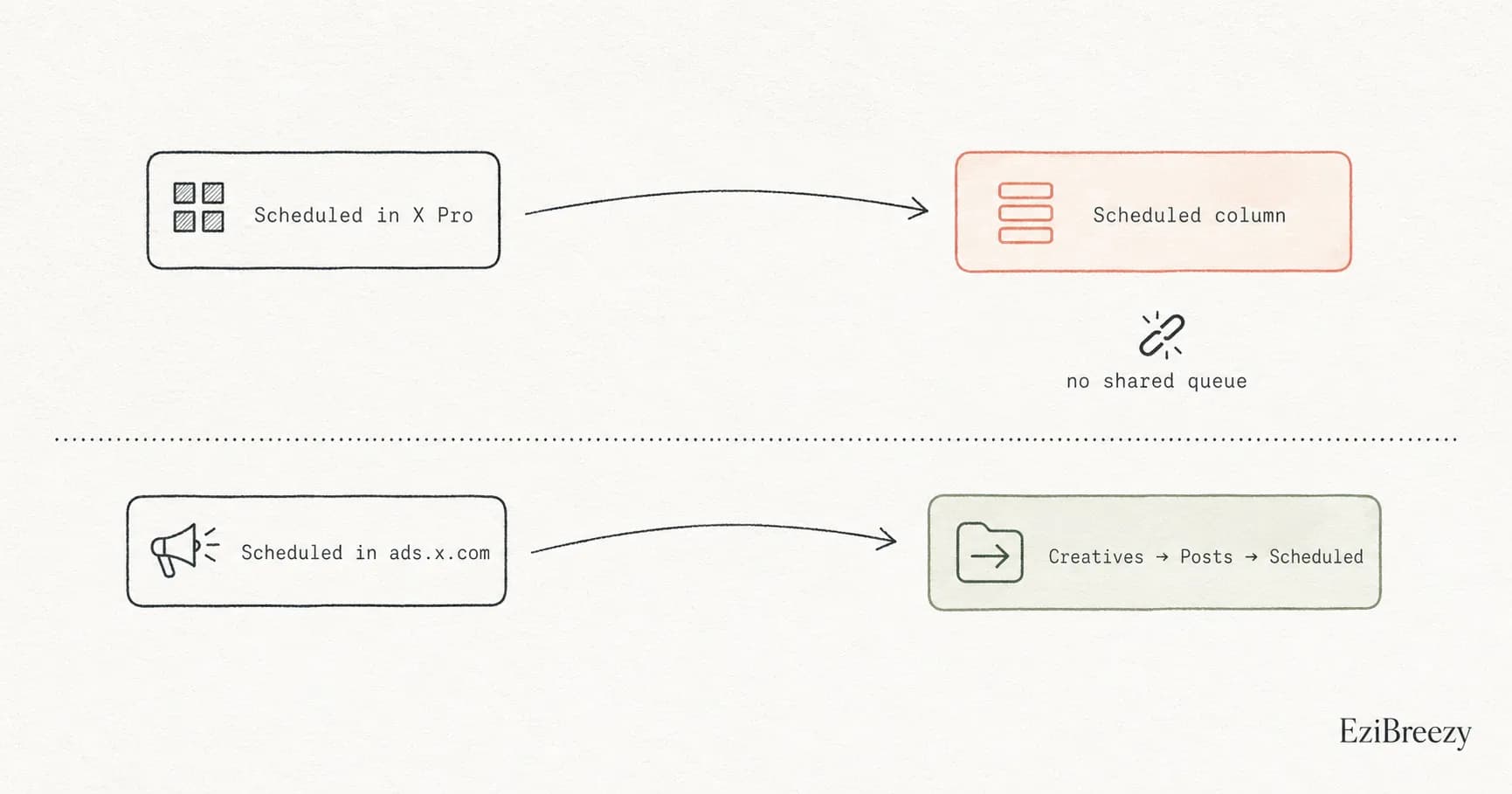
Find scheduled posts on X by going back to the workflow that created them. X Pro uses a Scheduled column, while ads.x.com stores them under Creatives, Posts, then Scheduled Posts.
Short answer
Find scheduled posts on X in the same product where you created them: X Pro uses the Scheduled column, while ads.x.com uses Creatives, Posts, then Scheduled Posts. X does not keep every scheduled post in one universal queue, so the right place depends on the workflow you used.
Where scheduled posts live in X Pro
In X Pro, scheduled posts are viewed and edited through a Scheduled column on the dashboard. The queue is not in your profile settings or a hidden menu on x.com.
If you scheduled through X Pro and cannot find the post, add or reopen the Scheduled column first. X Help still lists Scheduled as one of the X Pro column types.
Where scheduled posts live in ads.x.com
The ads workflow is different. X Ads says you manage scheduled posts from ads.x.com by going to Creatives, then Posts, then switching the view to Scheduled Posts.
That is the queue for both scheduled organic and Promoted-only posts created in the ads account. If the post was scheduled there, that is the view that matters.
Why the queue is hard to find
The main reason people get lost is that X splits scheduling across different products. There is no single scheduled-posts page that shows everything in one place.
A dedicated scheduler keeps the queue in one obvious spot. Instead of remembering which native X product you used, you just open your calendar and manage the post from there.
Next step
Keep your scheduled X posts easier to find
Use a workflow where scheduled X content is visible in one queue, easier to edit, and not scattered across native products.
See the X schedulerRelated links
Keep exploring the workflow
X/Twitter scheduler
Keep scheduled X posts in one calendar view instead of splitting queue checks across X Pro and ads.x.com.
Social media calendar template
Keep planned X posts visible before they disappear into a native scheduled queue.
How to build a social media content calendar
Use a calendar system that makes upcoming posts easier to find, review, and adjust.
Related questions
Continue inside the X / Twitter cluster
How do you edit scheduled posts on X?
How to change a scheduled X post before it publishes.
Can you schedule posts on X?
Overview of the native scheduling paths available on X.
Can you schedule tweets without Premium?
Whether X scheduling requires Premium or if free paths exist.