X / Twitter Question
How to Edit Scheduled Posts on X
Edit a scheduled post on X from the same workflow that created it: X Pro, ads.x.com, or your scheduler. The exact 2026 path depends on where the post was queued.
Short answer
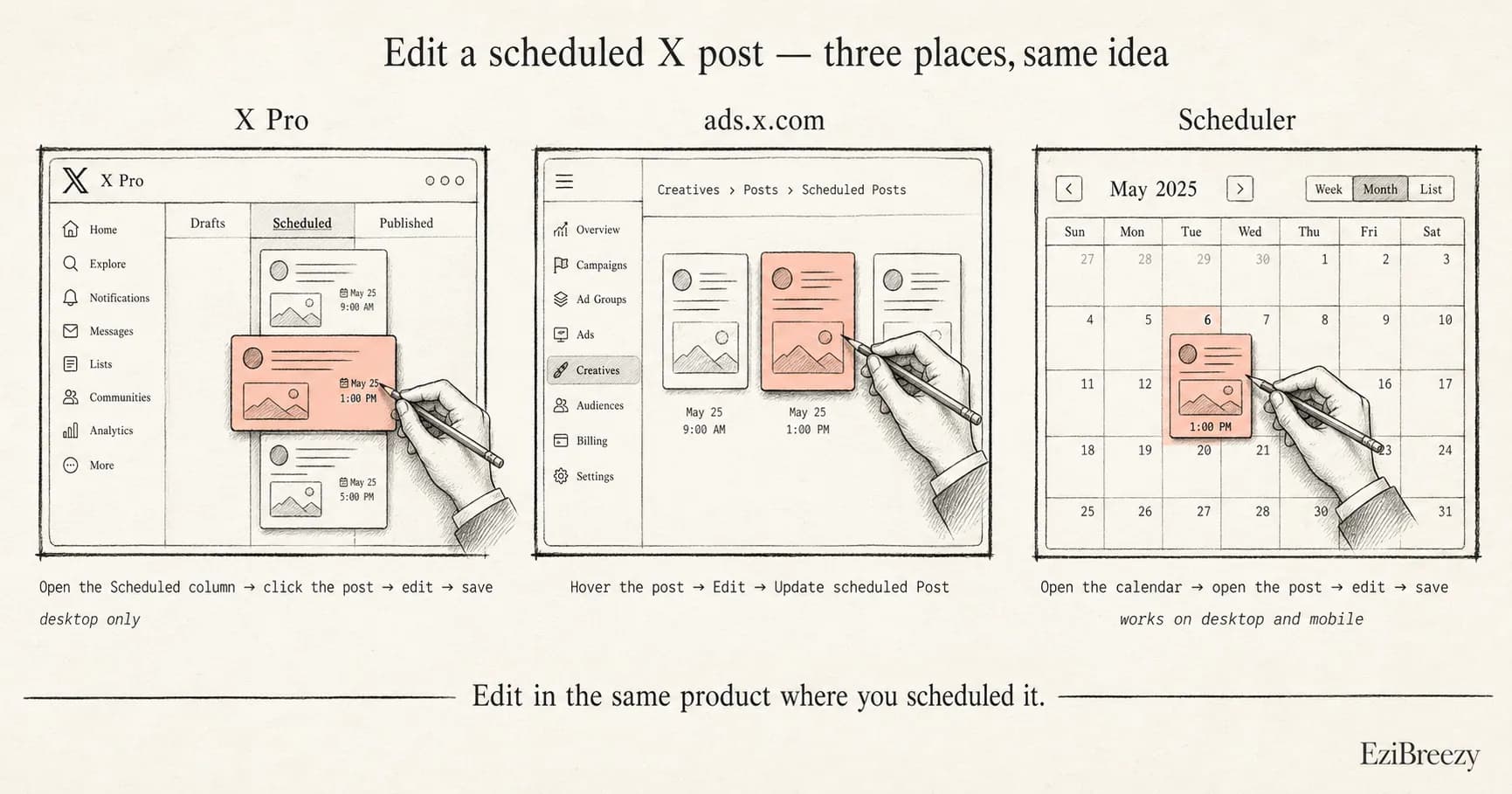
Edit a scheduled post on X in the same workflow that created it. In X Pro, add or open the Scheduled column and edit the post there. In X Ads, go to ads.x.com, then Creatives, Posts, and Scheduled Posts. If you used a third-party scheduler, edit the post in that scheduler before it publishes.
| Where scheduled | Where to edit | Mobile caveat |
|---|---|---|
| X Pro | Add or open the Scheduled column, then open the scheduled post. | X Pro is not available on mobile, according to X Help. |
| ads.x.com | Go to Creatives, Posts, then switch the post view to Scheduled Posts. | Use desktop if the ads interface is awkward or unavailable on mobile. |
| Third-party scheduler | Open the scheduler calendar or queue and edit the unpublished post there. | Once the post is live, edit or delete it from X instead. |
Edit scheduled posts in X Pro
X Pro handles scheduled posts through a Scheduled column. If the post was scheduled in X Pro, add or open that column first instead of looking for the post on your public profile.
Open the scheduled post from the column, make your changes, and save the updated schedule. X Help still says you can view and edit scheduled posts by adding a Scheduled column.
Edit scheduled posts in ads.x.com
For posts created through X Ads, log in to ads.x.com and go to Creatives, then Posts. Change the post view to Scheduled Posts to see posts that have not gone live yet.
X Ads says scheduled posts can be edited from this view by hovering over the post and choosing Edit. Save changes with Update scheduled Post.
Edit posts from your scheduler
If the post was created in a third-party scheduler, edit it there. Native X queues may not show every post that a scheduling tool is holding before publish time.
This is the simple rule for 2026: the queue that created the scheduled post is usually the queue you need for edits.
Why editing feels harder than it should
The issue is not that editing is impossible. It is that X scheduling can be split across X Pro, ads.x.com, and external schedulers.
A dedicated scheduler helps here because everything lives in one queue. You can review, revise, and manage posts without remembering which native X product you used.
Next step
Make scheduled X edits from a cleaner queue
Use a workflow where scheduled X posts are easier to review, revise, and publish without hopping between native products.
See the X schedulerRelated links
Keep exploring the workflow
X/Twitter scheduler
Edit scheduled X posts from one calmer queue instead of remembering which native X product created them.
Social media character counter
Catch length and pacing problems before the X post enters the queue.
How to build a social media content calendar
Keep queue edits inside a calmer planning system instead of handling them one post at a time.
Related questions
Continue inside the X / Twitter cluster
Where do you find scheduled posts on X?
How to locate the queue in X Pro and ads.x.com.
Can you schedule posts on X?
Overview of how scheduling works on X and which paths are available.
Can you schedule tweets without Premium?
Whether you can schedule without paying for X Premium.