Instagram Question
How to Cancel a Scheduled Post on Instagram
Find the scheduled Instagram post in the same place you created it, then delete it, move it back to drafts, or reschedule it before the publish time.
Short answer
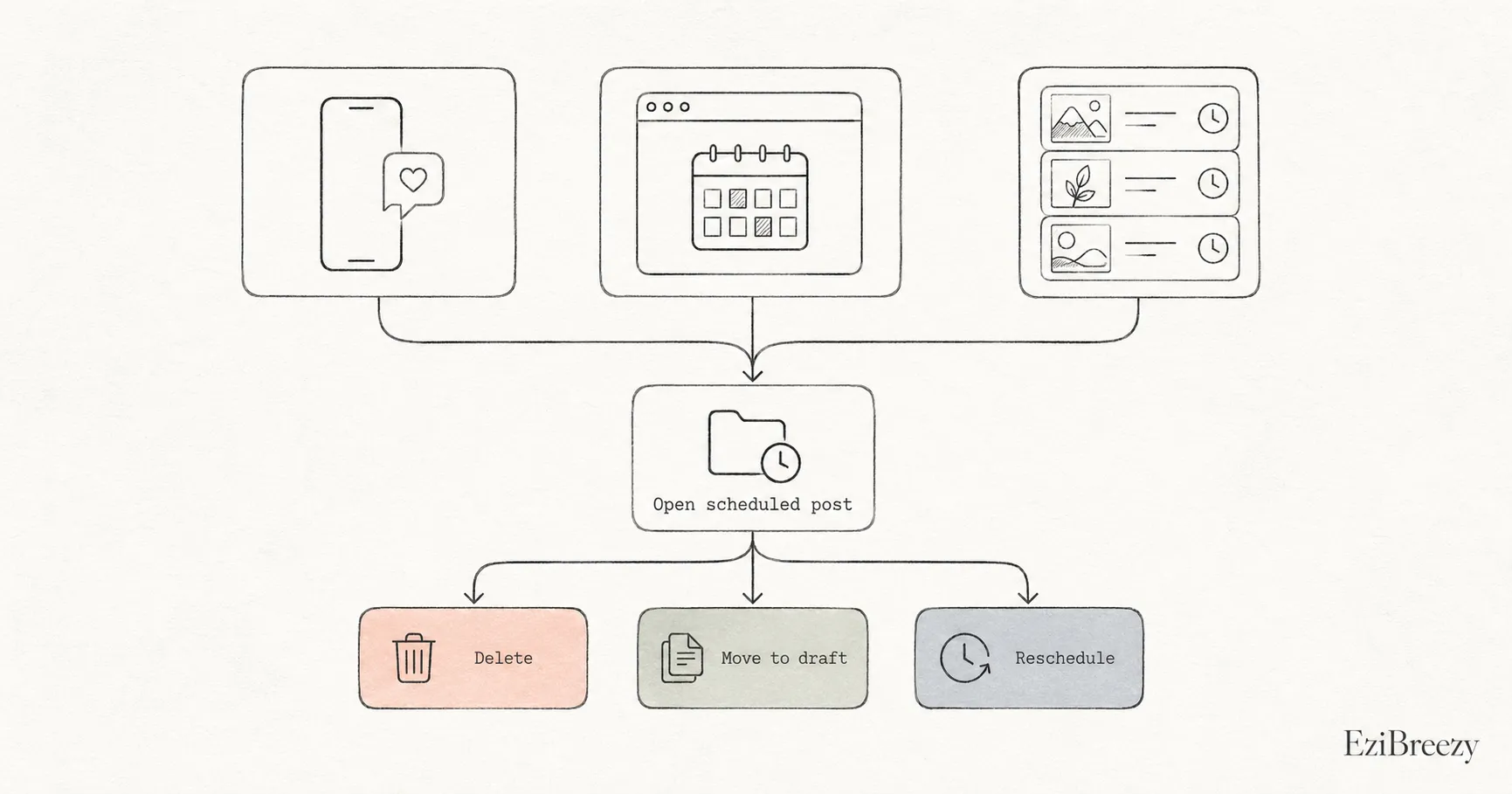
Yes. You can cancel a scheduled Instagram post before it publishes. Start in the place where you scheduled it, then open the scheduled post and delete it, move it back to drafts, or reschedule it before the publish time.
- 1Find the scheduled queue.
- 2Open the scheduled post.
- 3Delete, move to draft, or reschedule it before publish time.
Cancel in the Instagram app
If you scheduled the post inside Instagram, open the app and go to your profile menu. Look for Scheduled content, Scheduled posts, or the closest scheduled-content area your app version shows.
Open the scheduled post, then use the post options to delete it, reschedule it, or share it now. Deleting removes it from the scheduled queue before it publishes.
If you cannot find the scheduled post in Instagram, check whether it was created in Meta Business Suite or a scheduler instead. Scheduled posts usually need to be canceled from the same surface that created them.
Cancel in Meta Business Suite
If you scheduled the post through Meta Business Suite, open Business Suite on desktop or mobile and go to the Planner or Content area. Find the post in the scheduled view.
From there, open the post actions and delete it, move it to drafts, or reschedule it for another time. This is often the better place to check if the post was planned alongside Facebook content.
If a post has already published, canceling no longer applies. You would need to delete or edit the live Instagram post directly.
Cancel in a scheduler
If you scheduled the post through a third-party tool like EziBreezy, cancel it inside that scheduler. Open the calendar or queue, find the post, and delete it or move it back to drafts.
This matters because many schedulers hold the post until the scheduled time, then publish through Instagram's approved publishing flow. Canceling it in the scheduler before publish time should stop it from going live.
Rescheduling is often better than deleting if the content is still useful but the timing changed.
Next step
Schedule Instagram posts with less last-minute changes
Plan, preview, and schedule Instagram content from one workspace so the queue stays clean and cancellations are rare.
Explore Instagram schedulerRelated links
Keep exploring the workflow
Instagram scheduler
Plan, schedule, and manage Instagram posts, Reels, and Stories from one visual workspace.
How to schedule Instagram posts
See the full batching and publishing workflow for a calmer Instagram cadence.
Social media calendar template
Map the full month of content before scheduling so cancellations are less likely.
Related questions
Continue inside the Instagram cluster
Can you schedule Instagram posts?
Understand the basic workflow for scheduling Instagram posts natively or with a third-party tool.
What settings are unavailable for scheduled Instagram posts?
See which features and settings behave differently when a post is scheduled versus posted manually.
Why can't I schedule Instagram posts?
Troubleshoot the most common reasons the schedule option is missing or disabled.