Instagram Question
What Settings Are Unavailable For Scheduled Posts On Instagram?
The exact list can change, but the safest rule is that advanced settings tied to collaboration, commerce, branded content, cross-posting, or app-only creation features are the most likely to break scheduling.
Short answer
There is no single static list that stays frozen forever, but as of March 19, 2026 the patterns are pretty consistent: scheduled-content warnings most often show up when a post depends on advanced settings tied to collaboration, product tagging, branded-content labels, fundraisers, or certain cross-posting combinations. The exact warning inside your current composer matters more than any evergreen checklist, because Instagram changes these boundaries over time.
Why advanced settings are the first thing to check
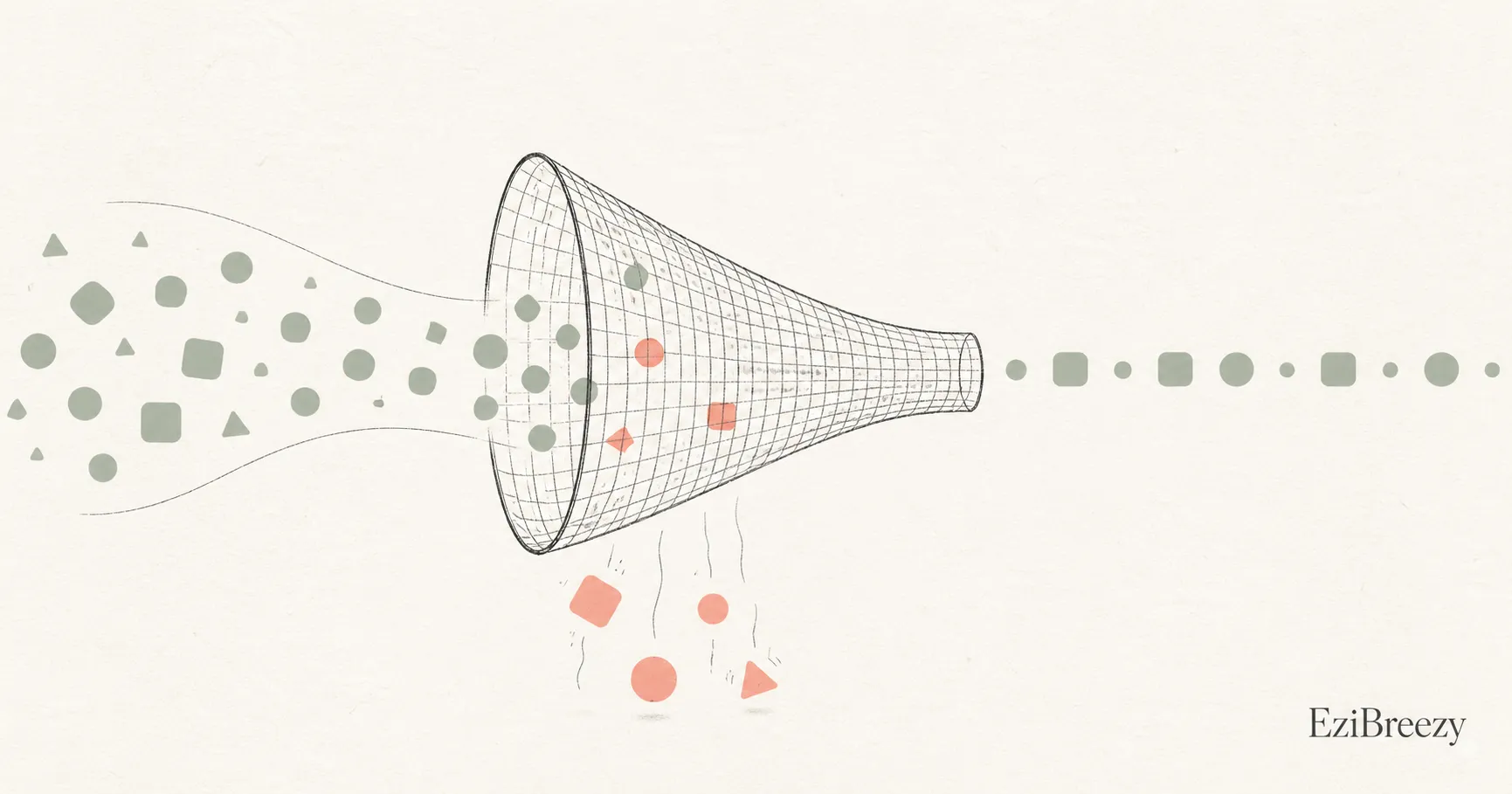
Scheduling works best when the post is straightforward: media, caption, basic publish settings, and a clean future timestamp. The more the post depends on live coordination, commerce features, or app-specific add-ons, the more likely Instagram is to warn that some settings will not carry into scheduled content.
That is why a post can look fine until the very end and then suddenly throw a compatibility warning. Scheduling is not just saving a draft. It is asking Instagram to preserve the post in a future-ready state, and some options do not survive that handoff cleanly.
The settings that most often cause trouble
Current tool help docs and user reports point to the same trouble spots over and over: collaboration-style posts, product tagging or shopping-related elements, branded-content or sponsored labels, fundraisers, and cross-posting setups that depend on another account or platform. These are the kinds of settings most likely to conflict with scheduled content.
The important nuance is that not every scheduler surfaces the same restriction in the same way. A post might schedule in one workflow but require a lighter configuration in another. That is why a general rule works better than memorizing one vendor's exact warning box.
The clean fix when you hit the warning
Strip the post back to the essentials first. Remove the extra feature, try scheduling again, and see whether the warning disappears. If it does, you have identified the incompatible setting without wasting time blaming the whole scheduler.
From there, decide whether the advanced setting matters more than the convenience of auto-publishing. If it does, publish manually or use a reminder-based workflow for that post. If it does not, keep the scheduled version clean and let the scheduler do its job.
Next step
Keep scheduled posts clean and reliable
Use a workflow that helps you catch incompatible settings early and choose when a post should stay simple versus go manual.
See the scheduling workflowRelated links
Keep exploring the workflow
Instagram scheduler
Use a cleaner publish workflow when you want fewer surprises at schedule time.
How to schedule Instagram posts
See the broader process around getting a post ready before you schedule it.
Instagram caption generator
Keep the post strong even when you strip back incompatible extras.
Related questions
Continue inside the Instagram cluster
Why can't I schedule Instagram posts?
Use the broader troubleshooting page if the issue might be your setup rather than one incompatible setting.
Can you schedule Instagram Stories?
Stories are one of the clearest examples of a format where extra features can change the workflow.
Does scheduling hurt Instagram reach?
Helpful if you are mixing up feature restrictions with fears about algorithm penalties.